
Getting Started
Smart Form Publisher automates the creation and delivery of personalized documents based on Google Form™ submissions. This guide walks you through the full setup and configuration process.
Launch the Add-On
In the Google Form editor:
- Click the Add-ons icon (puzzle piece).
- Select Smart Form Publisher from the list.
- Click Open from the popup.
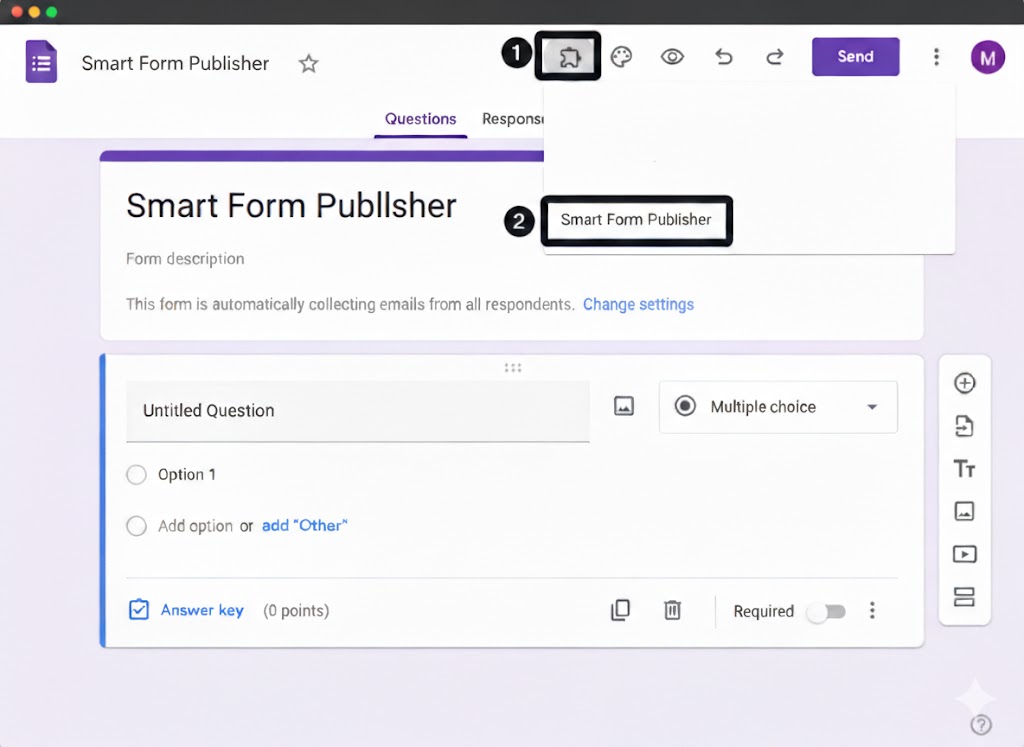
Background Configuration on First Launch
Upon initial launch, Smart Form Publisher automatically prepares your form:
- Enables “Collect email addresses” — ensures all responses are linked to a verifiable email.
- Creates a linked Google Sheet™ — used for storing generated file links and details.
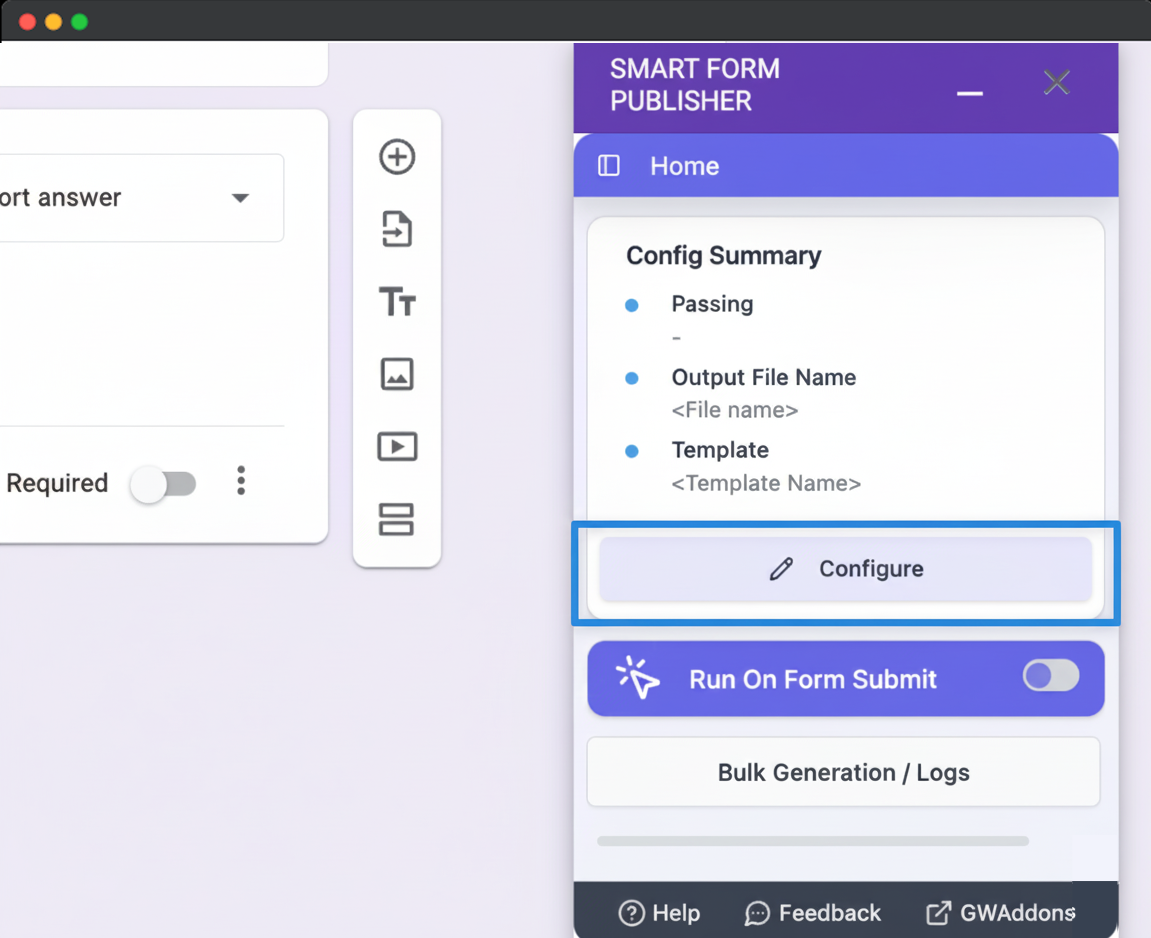
Configure the Add-On
Click the Configure button to start setup.
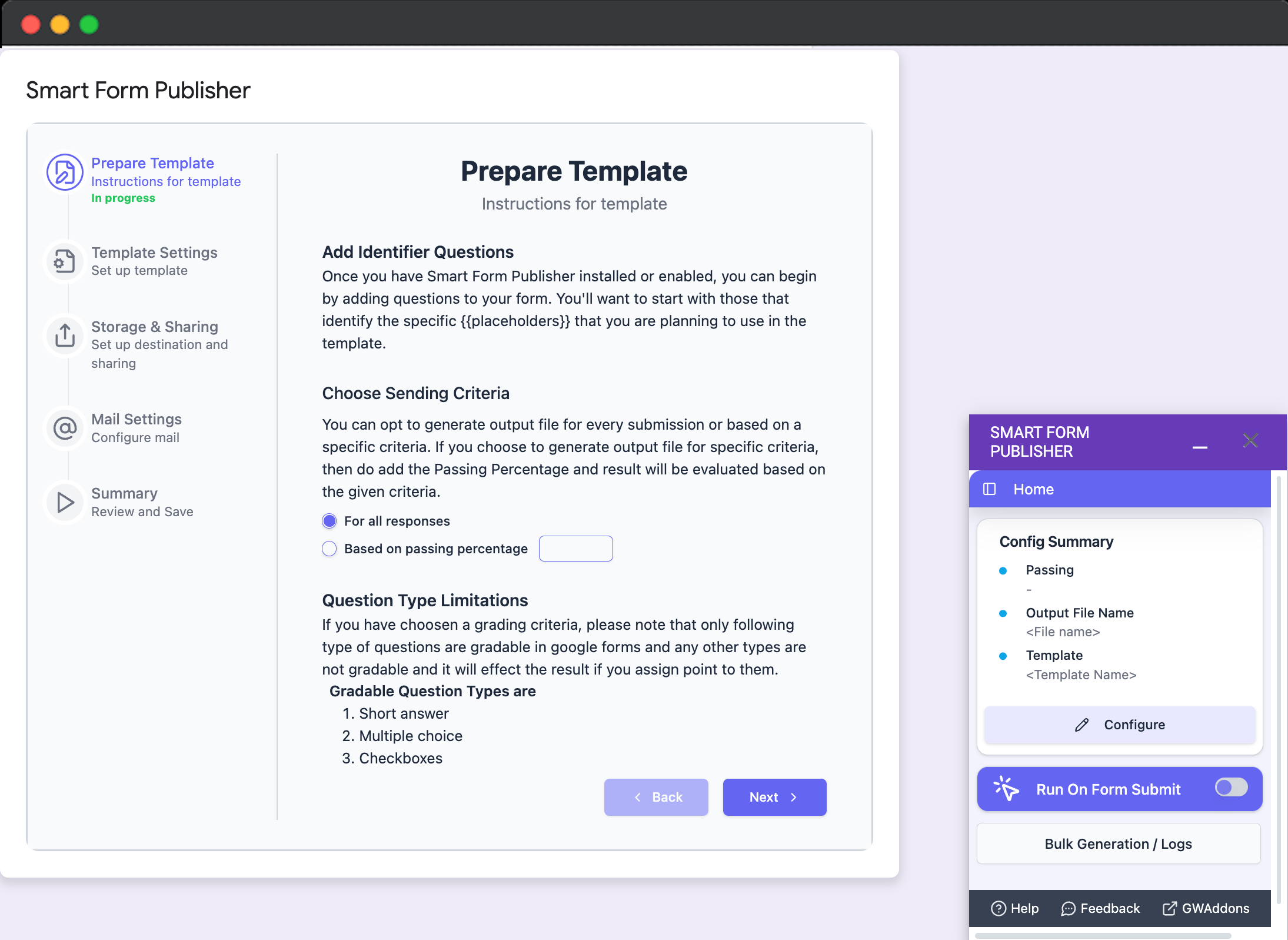
Prepare Your Form
Follow the guided setup and save all configuration settings to proceed.
Document Settings
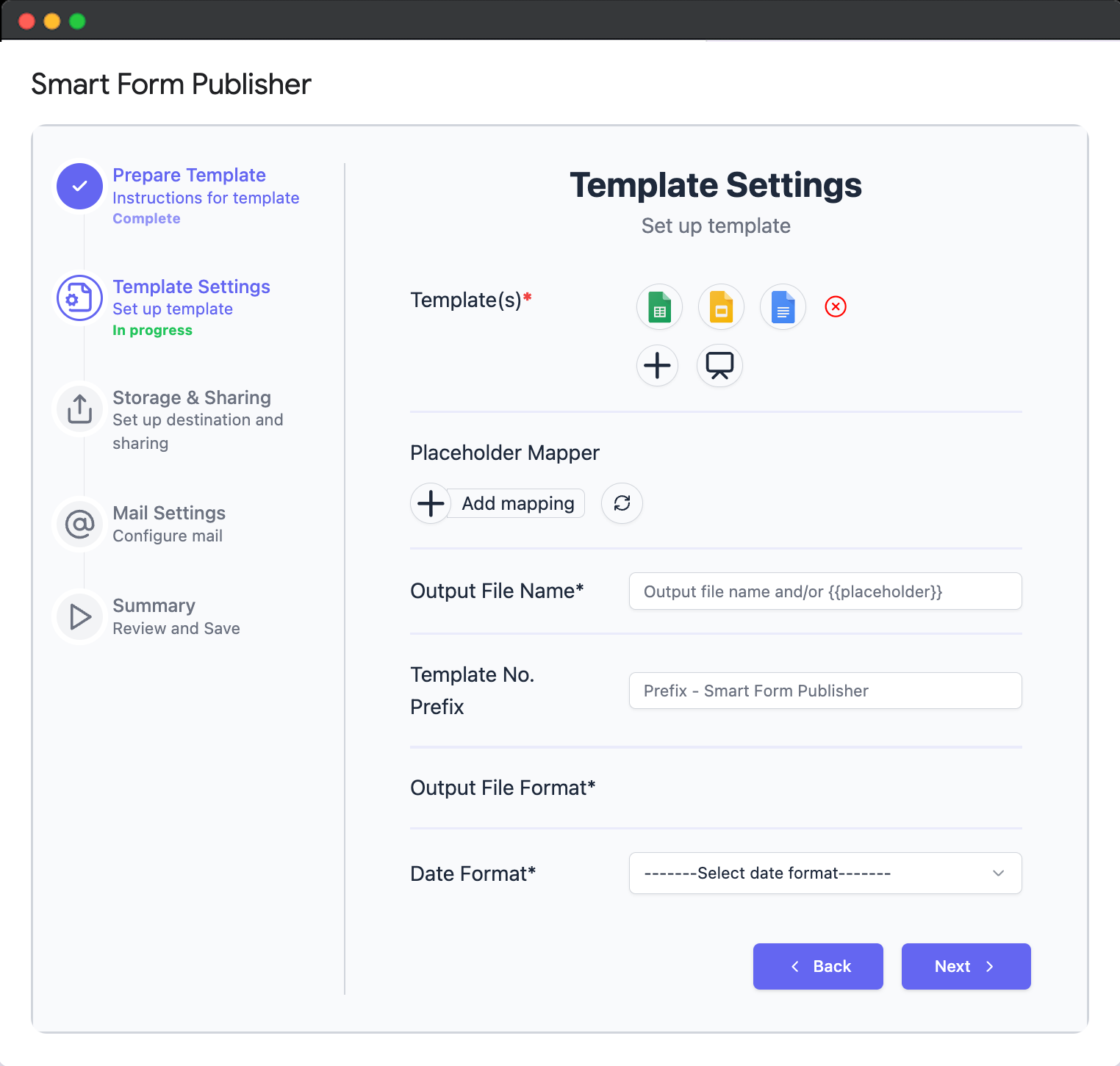
- Template Type — Choose Google Docs™, Slides™, or Sheets™ as your document template.
- Placeholder Mapper — Use the ➕ button to map fields like
{{Full Name}} - File Name — Define dynamic file naming patterns.
- Destination Folder — Select a Google Drive™ folder for generated files.
- Output File Format — Choose between PDF or Image.
- Date Format — Select a date format for insertion.
Mail Settings
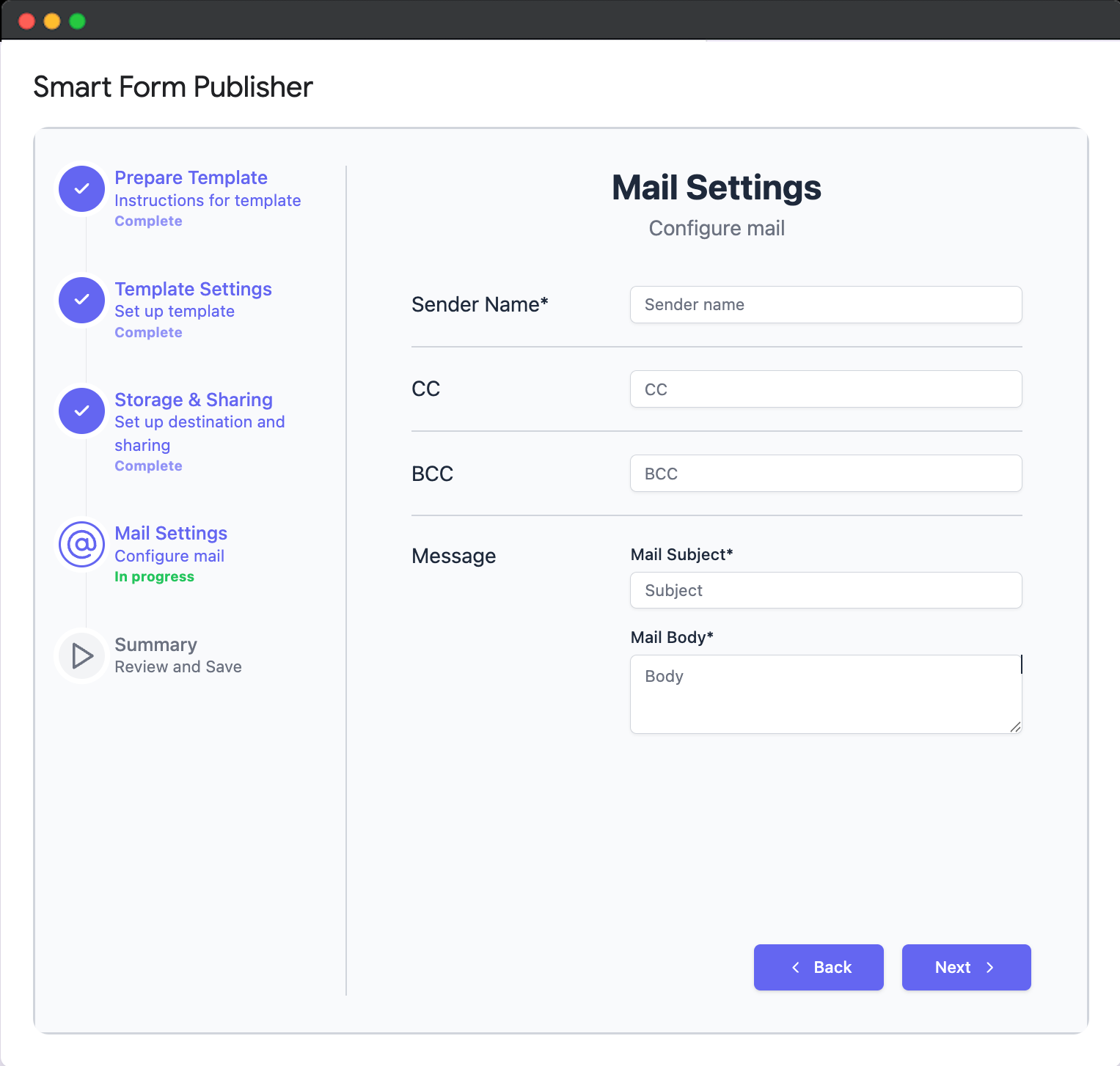
- Sender Name — Displayed in the “From” field.
- CC / BCC — Add additional recipients.
- Mail Subject — Customize your email subject line.
- Mail Body — Personalize with placeholders or conditional text.
- Save Mail Settings — Finalize and save.
How the Add-On Works
- Smart Form Publisher automatically generates a document:
- Uses your selected template (Docs™, Slides™, or Sheets™)
- Fills it with mapped placeholders
- Saves it in Google Drive™
- The generated file is:
- Emailed to the respondent automatically
- Or sent to custom recipients as configured
- File details and links are logged in the linked Google Sheet™.
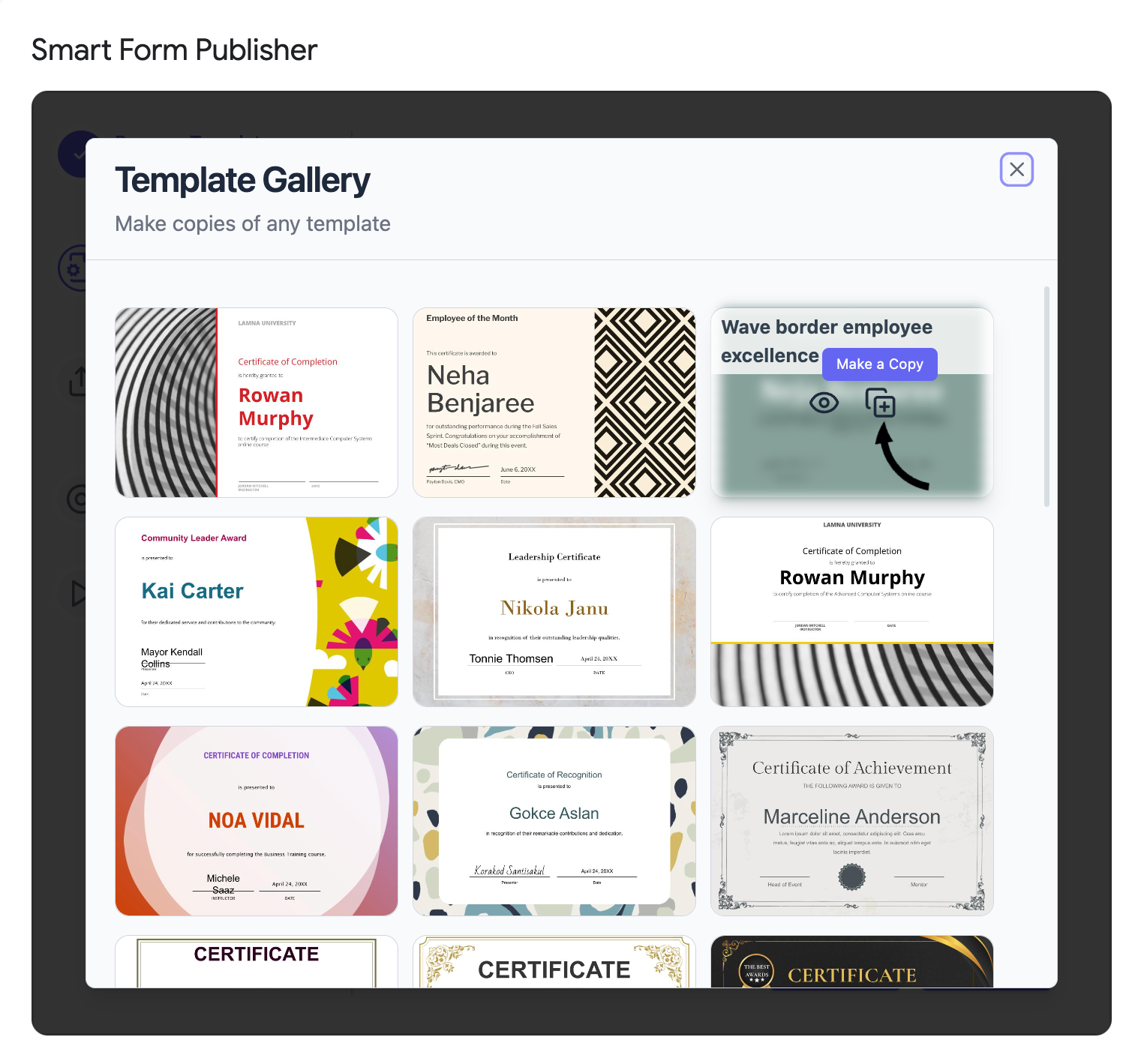
Template Gallery
Choose from pre-designed templates for faster setup:
- Open the Gallery in Document Settings.
- Select a template and click Copy.
- Click Make a Copy in the new tab.
- Return to Smart Form Publisher and select the copied file.
⚠️ Notes and Limitations
Smart Form Publisher supports dynamic document generation for most question types, but some (like grids or scales) may not support conditional formatting or calculations.
Avoid using these question types for best results:
- Paragraph
- Checkbox Grid
- Multiple Choice Grid
- Date
- Time
- Linear Scale
You’re Ready to Publish 🚀
Start generating professional certificates, invoices, and reports automatically — with just one form submission.