
General Settings
Define how your documents are generated, where they’re stored, and how they’re named — the backbone of your Smart Form Publisher workflow.
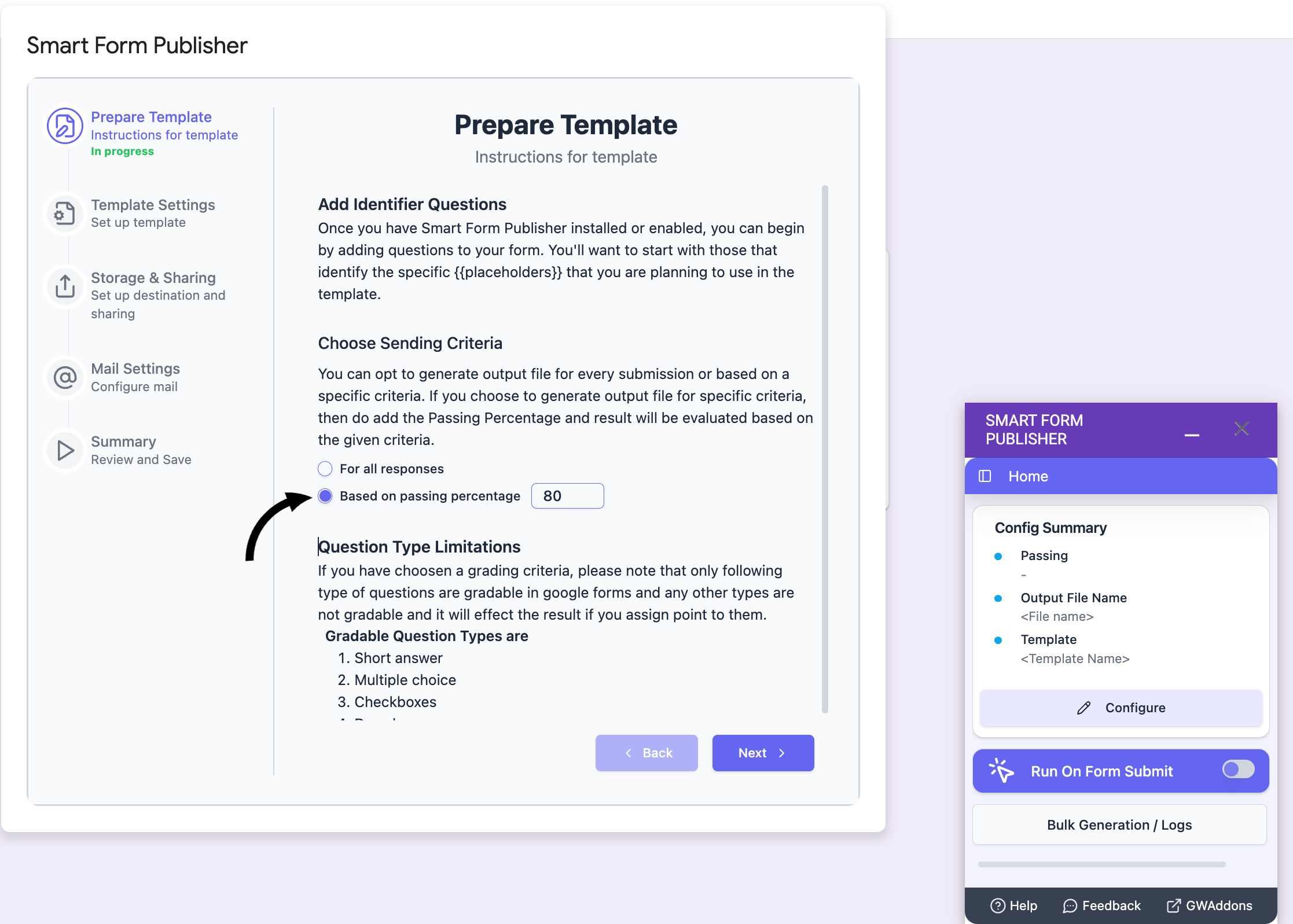
Document Generation Criteria
Smart Form Publisher gives you control over when a document should be created from a form response. You can configure this to save quota and ensure only relevant documents are processed.
- All Responses (Default): A document will be generated for every single form submission automatically.
- Based on Conditions: Define custom logic to filter responses. For example:
- Generate an Invoice only if "Payment Status" is "Paid".
- Generate a Certificate only if the "Quiz Score" is greater than 80%.
- Generate a Quote only if "Request Type" is "New Project".
💡 Tip: Using conditions helps you stay within your Google Drive™ storage limits and avoids cluttering your folders with invalid or empty submissions.
Select Template
Your template acts as the blueprint. You can choose a file from Google Docs™, Google Slides™, or Google Sheets™.
- Source: Select an existing file from your Drive or create a new one from scratch.
- Markers/Tags: The system automatically scans your selected file for markers (e.g.,
{{Question Title}}). Ensure your template markers match your Form Question titles exactly. - Multiple Templates: You can configure different templates for different conditions (e.g., send "Template A" for passing scores and "Template B" for failing scores).
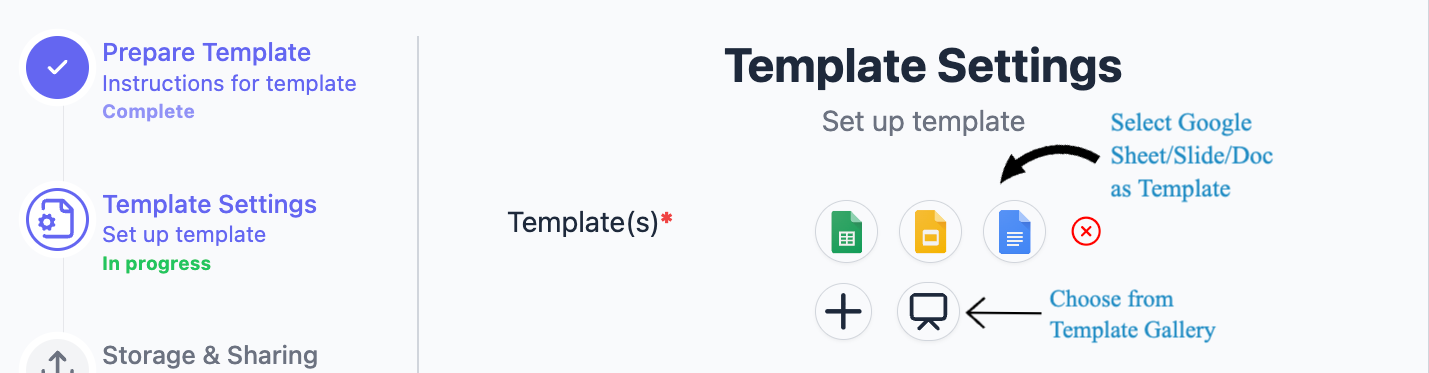
Don’t have a template ready?
- Click “Template Gallery” in the configuration menu.
- Browse a variety of professional, ready-to-use designs.
- Click “Make a copy” to save it to your Google Drive™.
- Return to the add-on and select the newly copied file.
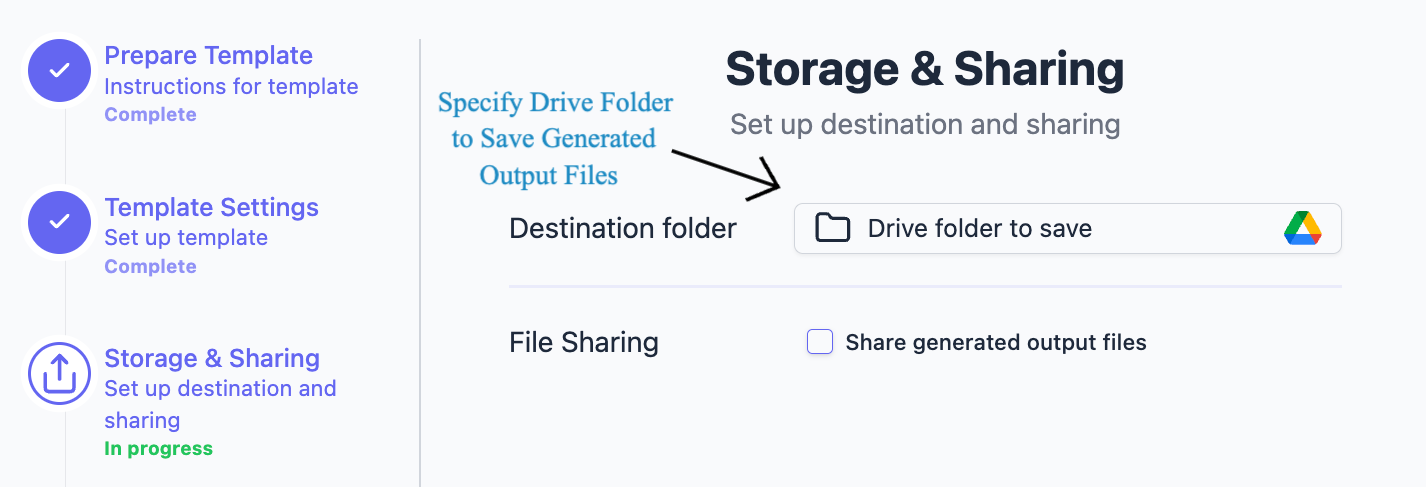
Destination Folder
Specify where generated documents will be stored in your Google Drive™. You can keep files organized by using static or dynamic folders.
- Root Folder: Create a new folder or select an existing one to hold all submissions.
- Dynamic Subfolders: Organize files automatically using form data. For example, set the path to:
/Invoices/{{Year}} / {{Month}}. This will automatically create subfolders based on the date of submission. - Shared Drives: Select a folder within a Team Drive/Shared Drive to ensure collaborative access for your organization immediately upon generation.
💡 Tip: If you delete the destination folder in Google Drive, Smart Form Publisher will automatically fall back to the default add-on folder to ensure no documents are lost.
Document Naming Convention
Stop searching for "Untitled Document". Personalize how your generated documents are named using placeholders to make them instantly searchable.
Configuration:
{{Form Title}} - {{Full Name}} - {{Timestamp}}
Best Practices:
- Unique Identifiers: Always include a variable that makes the file unique (like a timestamp or increment number) to prevent overwriting files.
- Valid Characters: Avoid using special characters like
/,\, or:in the file name settings, as Google Drive may treat them as folder separators or errors. - Readability: Use hyphens or underscores to separate dynamic fields.
Example Outputs:
- Job Application - John Doe - 2024-05-12
- INV-1001_AcmeCorp_Paid
Output Format
Choose the file format that suits your distribution needs. You can even generate multiple formats simultaneously.
- Google Formats (Docs / Slides / Sheets): Best for collaboration. Keeps the output editable in Drive so you can make manual adjustments after generation.
- PDF Document: Best for finalizing agreements, invoices, or certificates. Ensures the layout remains consistent across all devices and cannot be easily edited.
- Microsoft Office (Word / Excel / PowerPoint):Ideal if you need to email the file to external clients who prefer Microsoft software.
💡 Tip: For PDF outputs, you can further customize settings such as page orientation (Portrait/Landscape) and margin sizes directly in the settings.
Document ID / Numbering
Professional documents often require a unique reference number. Smart Form Publisher handles this incrementation automatically.
- Sequential Numbering: Automatically assign a number (1, 2, 3...) to every new response.
- Custom Format: Add a prefix or suffix to match your business logic (e.g.,
INV-2025-001,PO-0059). - Padding: Control the number of digits (e.g., set padding to 4 to generate
0001instead of1). - Integration: Use the merge tag
{{Document ID}}anywhere in your Google Doc/Slide template or in the email subject line.
This helps track and verify issued documents, especially when generating invoices or purchase orders in bulk.
By customizing these General Settings, you define the backbone of your Smart Form Publisher workflow — ensuring every document is generated, stored, and named exactly the way you want.