
Design Your Template
Before Smart Form Publisher can generate and share documents, you need to prepare a template that defines how your published output should look. Smart Form Publisher supports Google Docs, Google Slides, and Google Sheets as template formats — each suited for a different use case.
Supported Template Types
You can use any of the following Google file types as templates:
| Template Type | Best For | Example Output |
|---|---|---|
| Google Docs | Letters, certificates, invoices, reports | Personalized text-based documents |
| Google Slides | Certificates, presentations, visual docs | Dynamic visual layouts |
| Google Sheets | Summaries, structured reports, data logs | Auto-filled spreadsheets with merged responses |
For Google Docs Templates
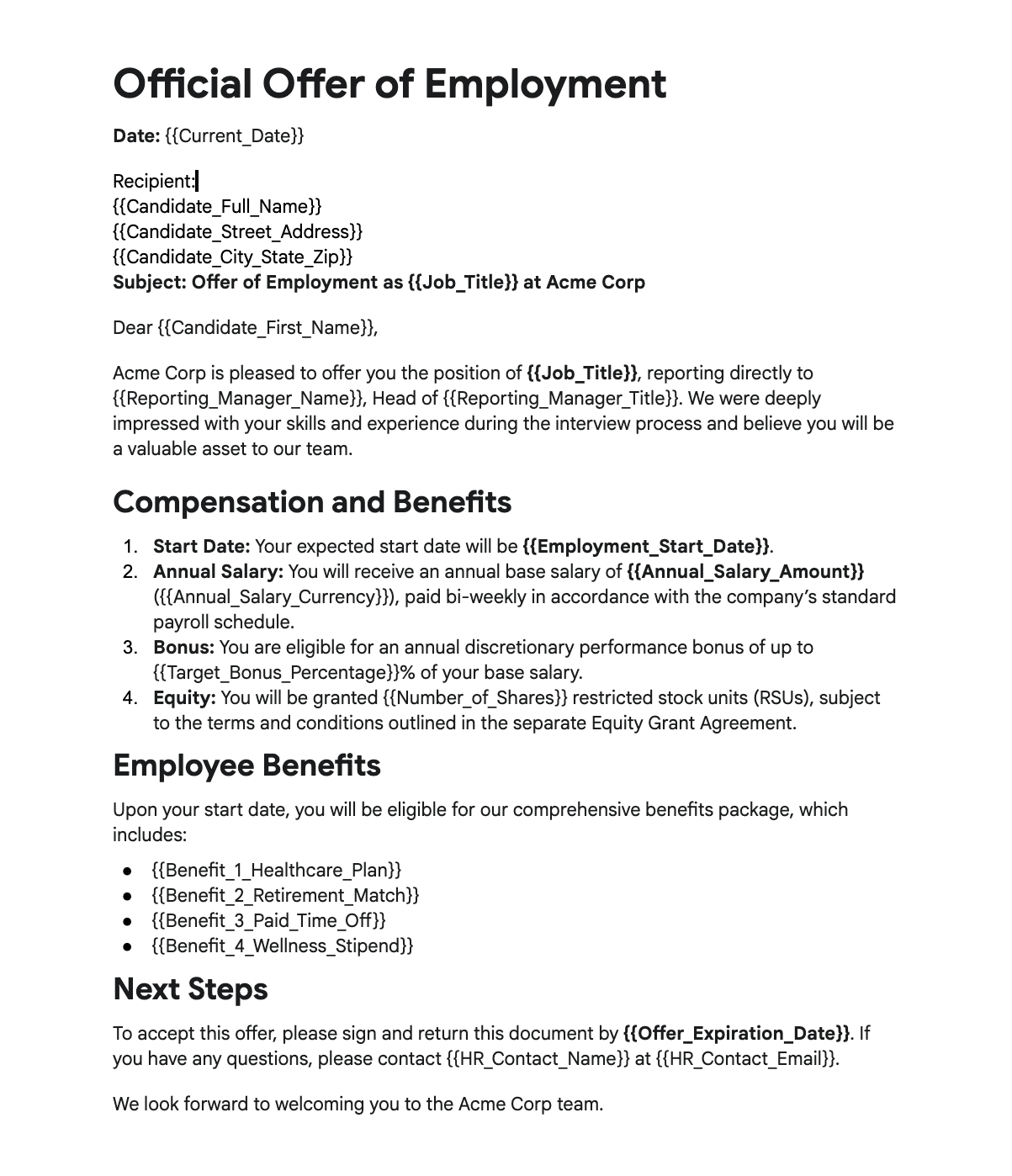
Google Docs templates are perfect for structured text documents such as reports, letters, or certificates. Smart Form Publisher replaces merge tags (placeholders) in your Doc with actual data collected from your Google Form.
Steps to Create a Google Docs Template
- Open Google Docs and create a new document.
- Write your document content normally.
- Insert placeholders using double curly braces wherever form responses should appear:
{{Name}}{{Email}}
- Save your document in Google Drive.
Formatting & Styling Tips
- Use bold or highlighted placeholders for clarity.
- Keep placeholder names exactly matching your Google Form question titles.
- Use tables or sections for neat alignment.
- Avoid spaces inside curly braces — use
{{Full Name}}not{{ Full Name }}.
For Google Slides Templates
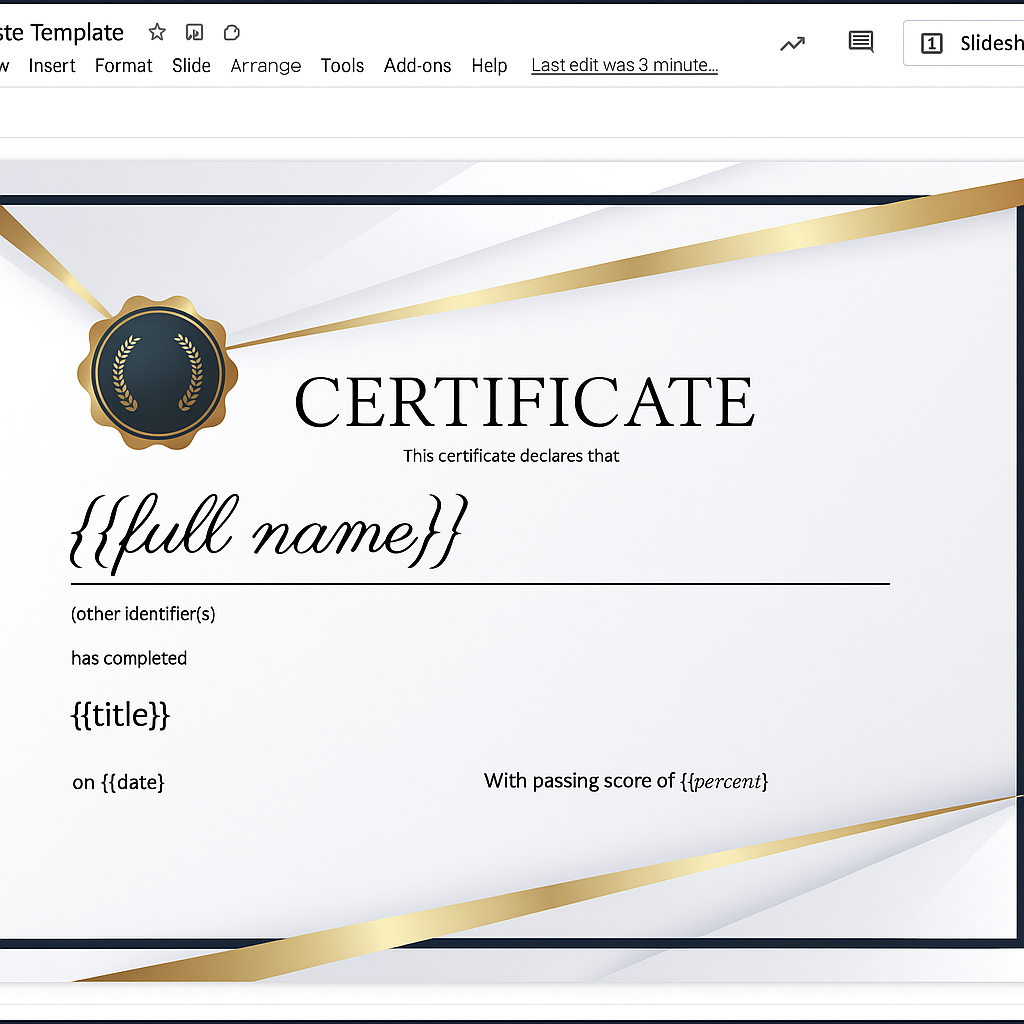
Google Slides templates are best for visual or design-heavy documents such as certificates, event badges, or presentations.
Steps to Create a Google Slides Template
- Open Google Slides and create a new presentation.
- Add text boxes where dynamic data should appear.
- Replace static text with placeholders such as:
{{Full Name}}{{Event Title}}{{Completion Date}}
- Insert images, shapes, or backgrounds to enhance design.
- Save your presentation in Google Drive.
Layout & Design Tips
- Ensure text boxes are large enough for varying text lengths.
- Use consistent fonts and color schemes.
- Align placeholders for balance and readability.
- For images (e.g., profile photos), include a placeholder area in your template.
For Google Sheets Templates
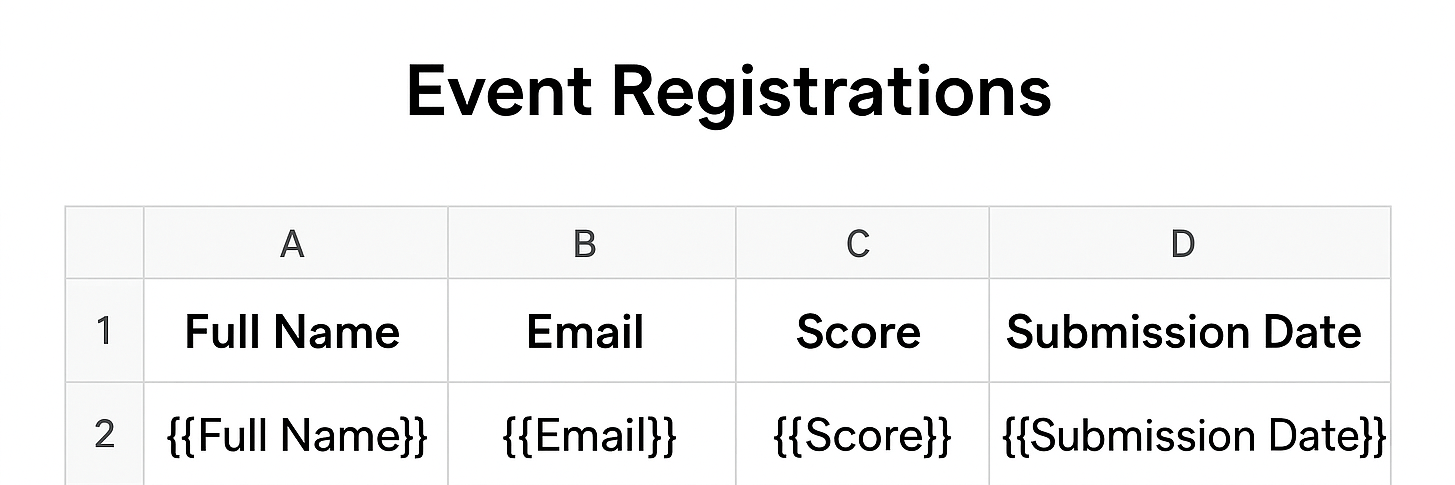
Google Sheets templates are useful for structured or tabular data — such as logs, summaries, or itemized reports.
Steps to Create a Google Sheets Template
- Open Google Sheets and design your layout.
- Insert placeholders like
{{Full Name}},{{Email}},{{Score}}, and{{Submission Date}}where you want dynamic data. - Save your template in Google Drive.
Use Cases
- Event registration summaries
- Participant or customer lists
- Tabular reports combining multiple responses
- Automated logs or trackers
Advanced Merging: QR Codes and Images
As highlighted in our Advanced Design Playlist, Smart Form Publisher supports more than just text. You can insert dynamic visual elements such as QR codes and images using special placeholder prefixes.
QR Code Integration
To insert a QR code that links to a URL or displays text when scanned, use the {{qr:}} prefix.
Syntax
{{qr:FieldName}}
{{qr:Static_URL_or_Text}}
Example
{{qr:Verification Link}}This generates a QR code that links directly to the document’s verification page.
Sizing Tip: The QR code size is controlled by the font size of the placeholder text in your template.
Image & Signature Merging
If your form collects files such as profile photos or handwritten signatures, use the {{img:}} prefix.
Syntax
{{img:Question Title}}Example
{{img:Upload your Signature}}The add-on fetches the uploaded image from the respondent’s Google Drive and embeds it directly into your Google Doc or Slide.
Important: Ensure the File Upload question is correctly mapped in the Smart Form Publisher sidebar.
Professional Layout Strategies
- Using Tables for Alignment: In Google Docs, use a 2-column table with 0pt borders to align labels on the left and placeholders on the right. This prevents layout shifting.
- Fixed Image Areas: In Google Slides, place a shape or fixed text box where the image should appear. The image will be fitted into that area during generation.
- Header & Footer Support: Place placeholders like
{{Document ID}}or{{Date}}in headers or footers so they appear on every page of multi-page documents.
Template Troubleshooting
- Hidden Formatting: Re-type placeholders manually if they fail to merge due to hidden formatting.
- Case Sensitivity: Placeholder names must match form question titles exactly.
- Permissions: Ensure the template is stored in a Google Drive location accessible to the add-on.
System-Generated Fields (All Template Types)
Smart Form Publisher provides several built-in merge fields usable in any template type.
| Placeholder | Description | Example Output |
|---|---|---|
{{Date}} | Inserts the form submission date | 06/10/2025 |
{{Form Name}} | Inserts the title of the connected form | “Feedback Form - June 2025” |
{{Verification Link}} | Inserts a verification link for the generated document | “https://verify.smartpublisher…” |
💡 Tip: Combine system-generated and form-based fields for maximum flexibility. Example: “This document was generated on {{Date}} from responses to {{Form Name}}.”
Once your template is ready, connect it to your form in Smart Form Publisher and configure your merge settings to start publishing dynamic documents automatically.