
Email Settings
Close the loop with your respondents. Configure Smart Form Publisher to automatically email the generated documents (PDFs, Docs, Sheets) directly to the person who submitted the form, or to your internal team.
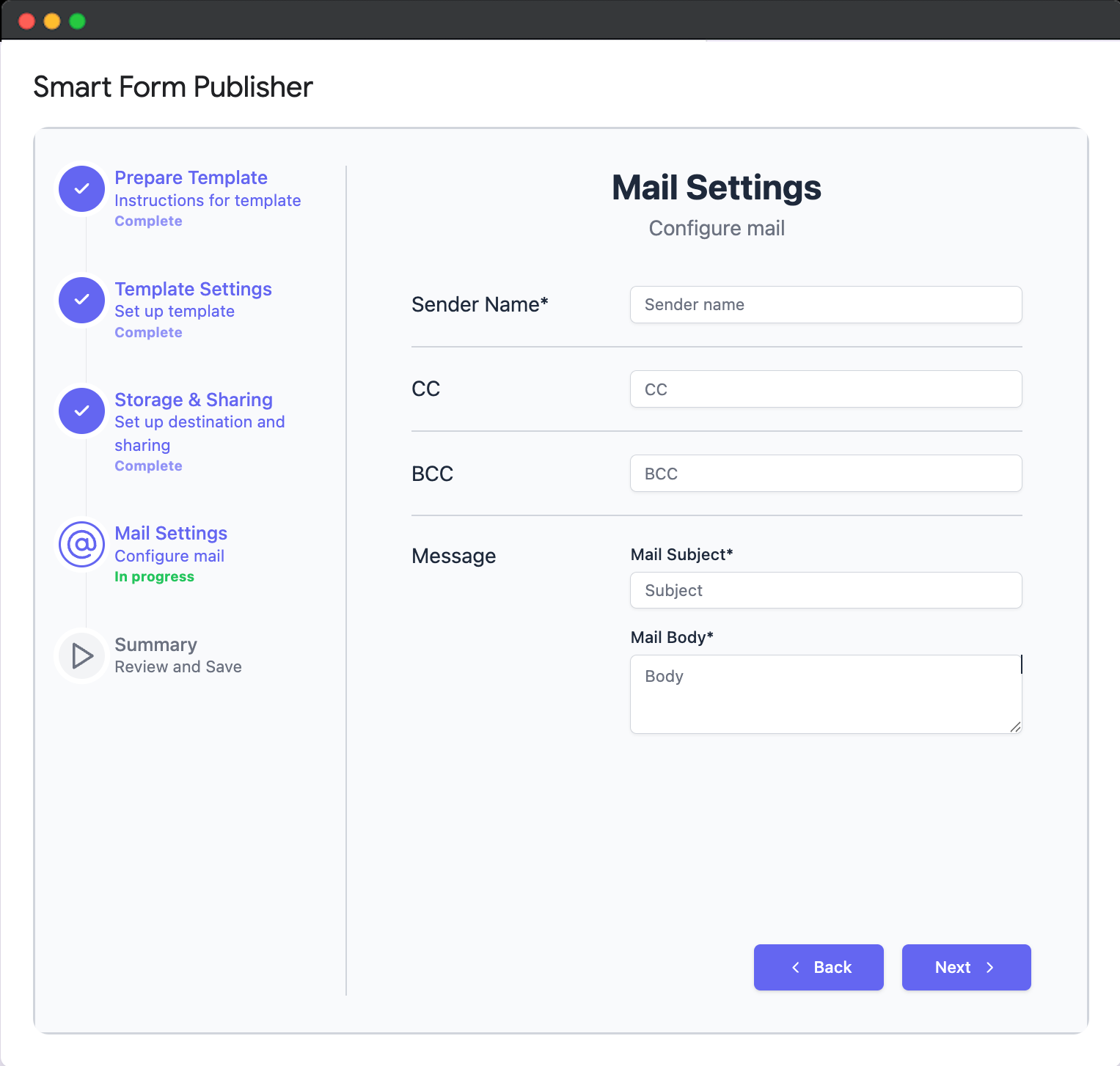
1. Recipient Configuration
Define exactly who receives the generated files. You can send emails to the form respondent, specific team members, or external stakeholders.
Primary Recipient (To)
- Dynamic: Select the form question that collects the respondent's email (e.g., "Email Address").
- Static: specific email (e.g.,
admin@company.com) to receive all notifications.
CC & BCC Options
- Notify the Team: CC your manager or accounting department on every invoice generated.
- Dynamic Routing: Use markers to CC specific people based on form answers (e.g., if Department = "Sales", CC
sales@company.com).
Mail Providers
Smart Form Publisher supports multiple email delivery providers so you can send emails reliably at any scale. By default, emails are sent using your Google account, but you can also connect professional email services like Amazon SES, SendGrid, Mailgun, and more for better deliverability, higher limits, and advanced control.
- Use Gmail for quick setup and small-scale sending.
- Use external providers for bulk emails, automation, and improved inbox delivery.
- Switch providers anytime based on your project needs.
👉 To set up and configure email providers, navigate to Mail Provider → Setting up Mail Providers from the left sidebar.
2. Personalization & Branding
Don't send generic notifications. Use Merge Tags to make every email feel personal and professional.
- Sender Name: Customize the "From" name (e.g., "Acme Support Team") so recipients instantly recognize your brand.
- Dynamic Subject Lines: Include key details right in the subject.
Invoice #{{Invoice ID}} for {{Company Name}} - Rich Text Body: The email body supports basic HTML. You can add:
- Your company logo/signature.
- Links to your website or support portal.
- Personalized greetings like "Hi {{First Name}}, thanks for your order!".
Watch how to set up automated email delivery and attachments.
3. Attachments & Delivery Logic
File Attachments
Smart Form Publisher attaches your generated document automatically. You can choose to send:
- PDF (Recommended): Best for invoices, certificates, and legal contracts.
- Microsoft Word / Excel: Useful if the recipient needs to edit the file.
- Google Doc / Sheet Link: Sends a "View Only" or "Edit" link instead of a physical file.
Conditional Sending (Advanced)
You don't have to send an email for every response.
Example Scenarios:
- Send an email only if the user selects "Yes, send me a receipt" in the form.
- Send a different email template to managers for approval if the "Expense Amount" is greater than $1,000.