
Manual Generation
Generate documents and certificates manually from the Google Forms interface using the Smart Form Publisher sidebar.
While automatic generation is ideal for real-time delivery, manual generation provides full control when you want to review, correct, or batch-process data on your own schedule.
When to Use Manual Generation
Manual generation is best suited for workflows where documents should only be created after responses are reviewed or finalized.
- Post-Event Processing: Collect all responses first, then generate certificates in one batch after the event ends.
- Correction & Re-issuing: Correct data in your spreadsheet and re-generate documents for specific respondents.
- Bulk Migration: Generate documents for existing spreadsheet data created before installing the add-on.
Available Options
Generate for Selected Responses
Useful for testing templates or re-generating documents for specific individuals.
- Testing Your Design: Generate a document for a test submission to verify that all
{{tags}}and image mappings appear correctly. - Targeted Re-generation: Re-send a document to a specific respondent without processing the entire dataset.
Generate for All Responses
Designed for large-scale processing after all responses have been collected.
- Bulk Processing: Scans the entire linked spreadsheet and generates documents for rows that do not already have a successful generation status.
- Background Execution: Documents are generated in the background, allowing you to return later to review results.
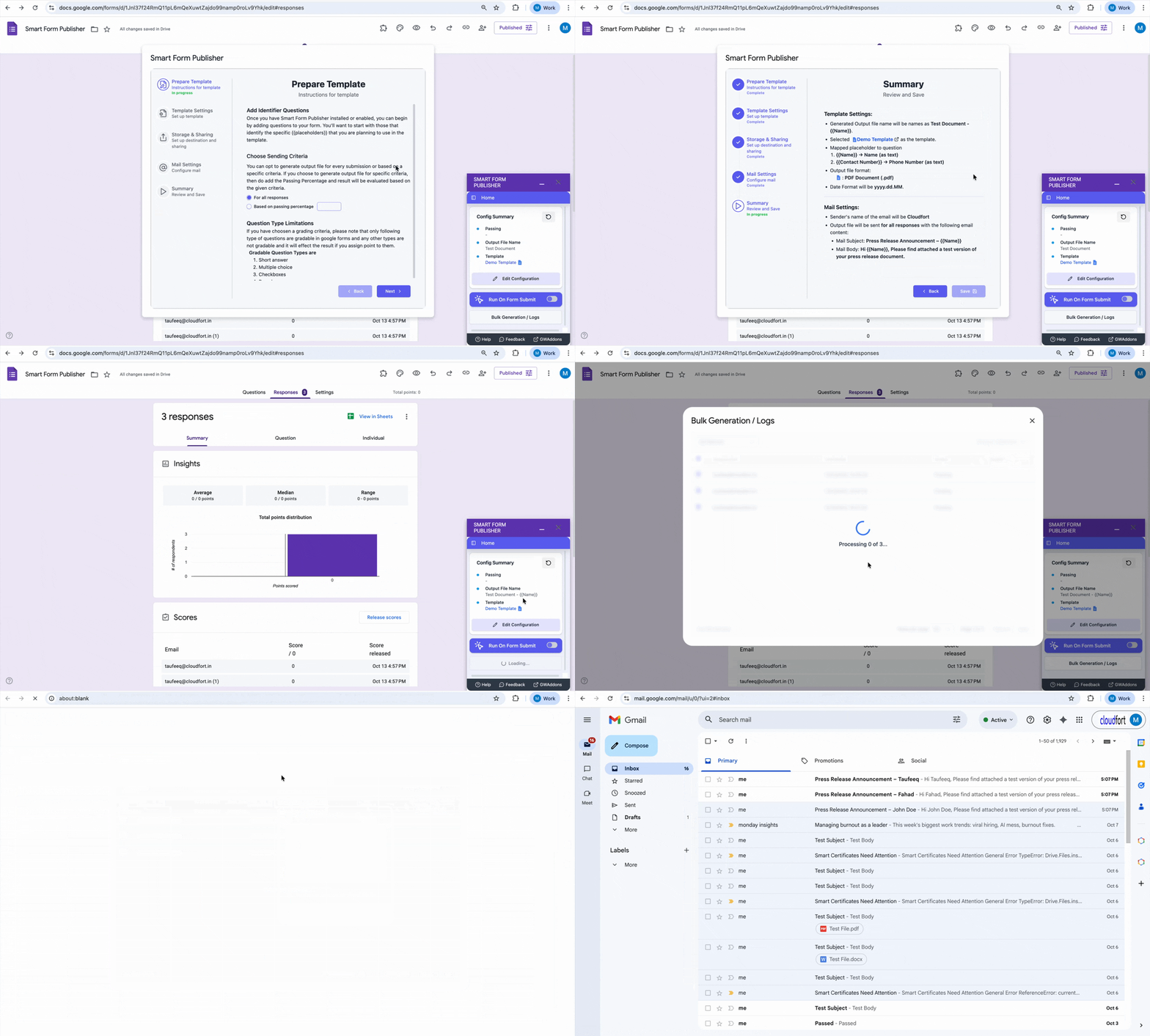
Step-by-Step: Running a Manual Batch
- Open the sidebar via Extensions → Smart Form Publisher → Open
- Click on Bulk Generation/Logs Button
- Navigate to the Generate tab in the sidebar.
- Choose your processing range:
- Select All to process every response
- Select Selected to process specific rows only
- Click Generate to begin processing. Progress is displayed in real time.
The Role of the Status Column
Manual generation progress is tracked directly in the linked Google Sheet.
- Duplicate Prevention: Rows already marked as generated are skipped automatically during bulk runs.
- Forced Re-generation: Clearing the value in the Document URL column allows that row to be processed again.
Best Practices
- Review spreadsheet data for missing or incorrect values before running a bulk generation.
- Keep daily Google email and document quotas in mind when generating a large number of files.
- Manual generation can be used while automatic generation remains disabled for batch-only workflows.
Video Guide
For a visual walkthrough of selective and bulk generation, refer to the Manual and Bulk Generation Guide.
Next Step: Setting Up Automatic Generation