
5 Tips for Designing Beautiful Google Doc Templates
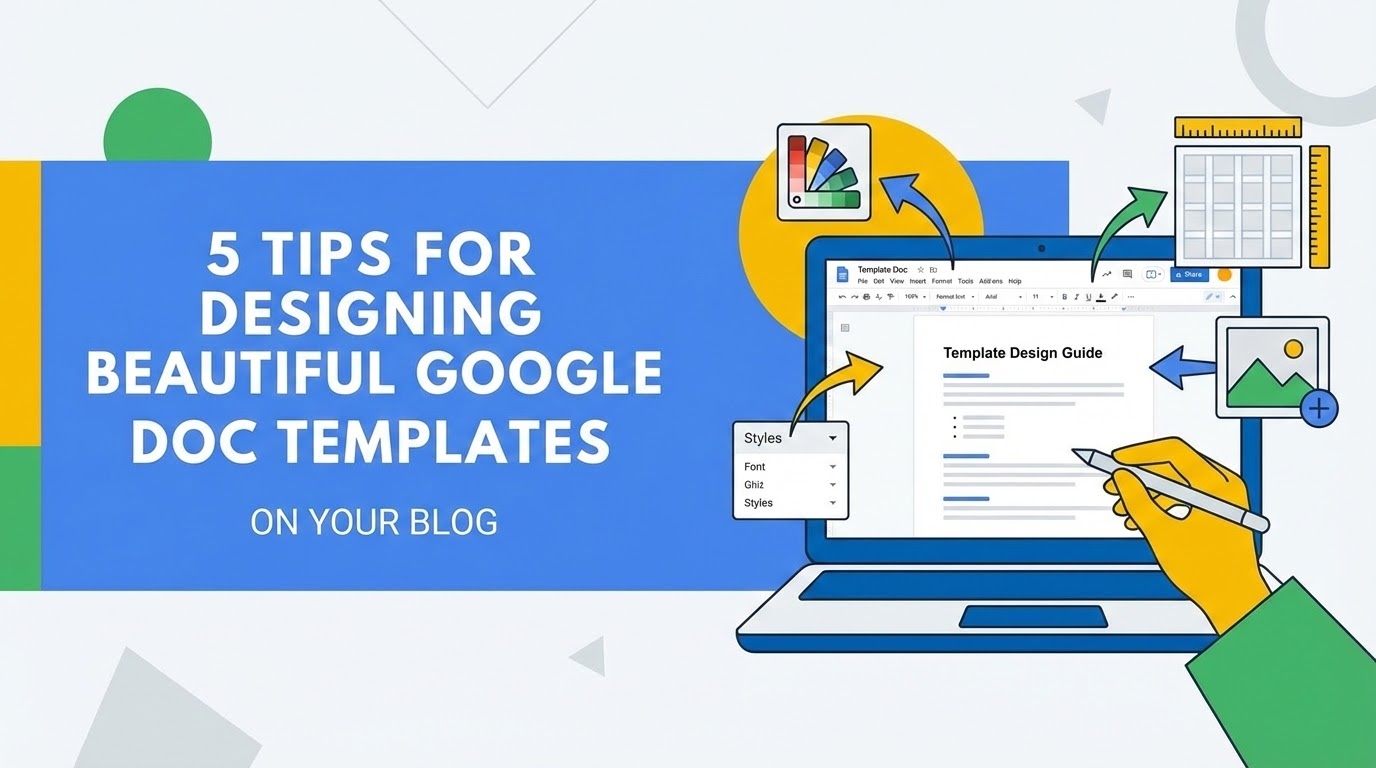
Automation is great, but the final output needs to look flawless. When a client receives an automated document, they shouldn't be able to tell it was generated by a machine. Here are our top tips for ensuring your generated PDFs look like they were designed by a pro.
1. Use Tables for Layout
Google Docs doesn't have CSS grids, but invisible tables work wonders. Use borderless tables to align text, signatures, and dates perfectly. This ensures that even if a dynamic tag expands (e.g., a very long company name), it won't push other elements like your logo or signature line out of alignment.
2. Mind Your Tag Spacing
When placing tags like {{First Name}} {{Last Name}}, ensure there is exactly one space between them. Be mindful of line wrapping; avoid placing tags too close to the right margin. If a user enters a long response in your form, it could cause an unexpected line break that ruins the visual flow of the paragraph.
3. Standardize Fonts and Styling
Select clean, web-safe fonts like Roboto, Montserrat, or Open Sans for maximum compatibility. A common mistake is formatting the tag differently than the surrounding text. Ensure the {{Tag}} itself is highlighted in the exact font weight, color, and size you want the final data to appear in.
4. Optimize Headers and Footers for Branding
To give your documents a "premium" feel, place your branding elements in the Header and Footer sections. Use a high-resolution PNG for your logo (at least 300 DPI) to ensure it stays crisp when the document is converted to a PDF. Adding a subtle gray page number or a "Confidential" watermark in the footer can significantly increase the professional look of your contracts or reports.
5. Test with "Stress-Test" Data
Before you go live, run a few tests using the longest possible strings of text. If you have a tag for "Detailed Project Description," fill it with three paragraphs of "Lorem Ipsum" in your form to see how the Google Doc handles the overflow. Does it create a messy second page? Use Page Breaks (Ctrl+Enter) strategically in your template to ensure new sections always start on a fresh page, regardless of how much text is inserted above.
Bonus: Dynamic Image Insertion
Did you know Form Publisher can handle images too? If you are collecting photos or signatures via your form, you can place a tag in your template where you want that image to appear. To keep the design tidy, place the image tag inside a table cell with a fixed width—this forces the automated image to resize perfectly to fit your layout every time.
Design is the bridge between a functional document and a professional one. By spending an extra 10 minutes refining your Google Doc template, you ensure that every document your business sends out reinforces your brand's quality.
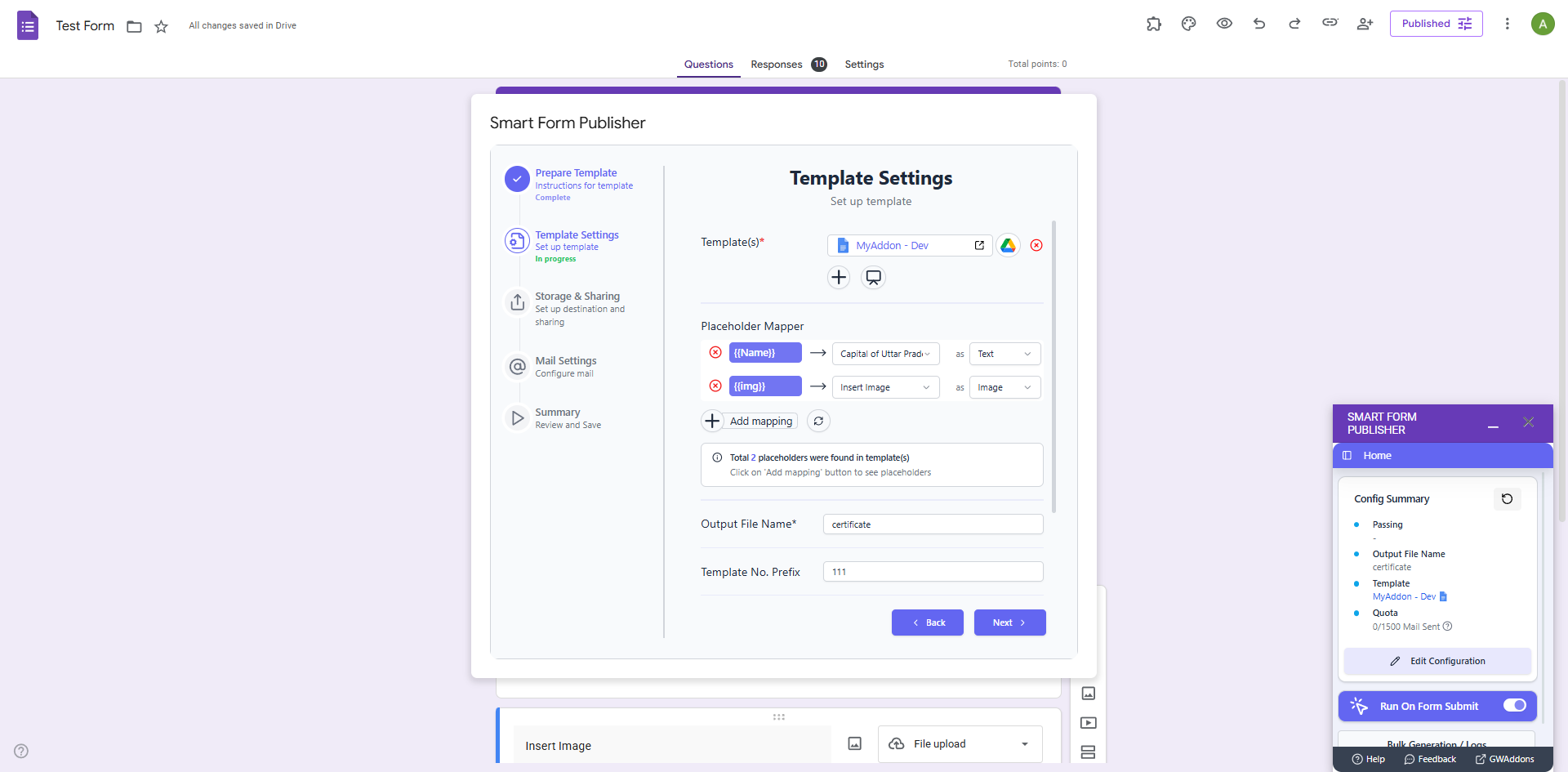
Ready to start building? Get started with Form Publisher here.